Restore Old Family Photos With AI: One 49-Word Prompt (2026)
Copy a 49-word conservator prompt, prep your scan and check faces on Nano Banana Pro and Nano Banana 2 — plus an honest map of where AI guesses instead of recovers.
Restore Old Family Photos With AI: One 49-Word Prompt (2026)
A 49-word prompt and a 600 dpi scan are enough to clear most dust, scratches and creases from an old family photo. This guide gives you the copy-paste prompt, the prep that matters, and an honest map of where AI repairs a photo and where it only guesses.
By Ropewalk Team. Written 2026-10-12. The prompt below is a template built from published restoration guides, not a benchmark result; we did not run a side-by-side on a real family scan for this article, so we show you how to run one yourself.
Quick Answer: scan, one prompt, check the faces
Restoring an old family photo takes 3 steps. Scan the print flat at 600 dpi, paste the 49-word conservator prompt below into Nano Banana Pro or Nano Banana 2 with the scan attached, then zoom into every face and compare it with the original. If the eyes, mouth or hairline changed, the model invented detail: rerun with a tighter prompt or fix that area by hand. Each generation costs on either model, so a few retries stay cheap.
Prep: scan high, crop, restore before upscaling
Photo restoration quality is decided before the prompt, at the scanner. Scan the print flat at 600 dpi for small snapshots (300 dpi is enough for prints larger than 8×10 inches), save as PNG or high-quality JPG, and crop away the scanner bed so the model does not spend effort on black borders. Do not use a phone photo taken at an angle, because perspective skew and glare read to the model as damage.
Restore first, upscale second. Running an upscaler on a scratched scan enlarges the scratches and teaches later steps that they are real texture. A clean 1,500-pixel-wide restoration upscales better than a damaged 3,000-pixel scan. If you need a bigger file for print, finish with a dedicated step from our AI image upscaler roundup after you approve the restoration.
The one prompt
The prompt works because it names the job, the protected elements and the forbidden actions in 49 words. "Conservator" sets a cautious register: repair, do not reinterpret. The protect-list (faces, expressions, pose, clothing, framing) is the part that keeps identity stable. The final sentence blocks the most common failure, where a model fills a torn corner with a plausible but invented person, prop or sign. Attach your scan in the chat before sending, and keep the prompt in English even when you chat in another language, because the wording was written and checked in English.
Nano Banana Pro vs Nano Banana 2 on the same scan
Nano Banana Pro and Nano Banana 2 are both image-editing models that accept a photo plus an instruction, and both cost per generation on Ropewalk. The practical difference is how much each one tends to "improve" beyond the instruction: our Nano Banana 2 vs Nano Banana Pro comparison covers their general behavior. For restoration, run the identical prompt on both and judge them on one criterion only: which one changed the faces less. Use this protocol: open the original and each result at 100% zoom, check the eyes, teeth, hairline and any jewelry, then check the background for new objects. Pick the model with fewer changes, even if the other looks sharper. Sharper but different is a portrait of someone who looks like your relative.
Optional colorize pass, as a second prompt
Colorization is a separate job from repair, so give it a separate prompt on the already restored file. Combining both in one request makes the model rebalance tones while it repairs, and faces are the first thing to drift. After you approve the clean black-and-white result, send the 27-word colorize prompt below with that restored image attached. Treat the colors as an educated guess. A model cannot know the real shade of a 1950s dress, only a typical one, so ask relatives before you print it as fact.
Where AI guesses instead of recovers
AI restoration recovers information that is damaged but still present in the scan, and it guesses where information is gone. Scratches, dust, light fading and creases leave most of the picture intact, so repair is reliable. A torn-off corner, a water stain over a face or a face smaller than about 40 pixels across has no data left, so the model draws a plausible one.
Spot invented detail with 3 checks:
- Faces: compare eye shape, mouth line and hairline with the original at 100% zoom.
- Texture: skin that looks smooth like plastic or fabric with a repeating pattern means the model repainted it.
- Extras: new jewelry, buttons, text or background objects were not in the scan.
When a face fails the check, do not rerun the same prompt endlessly. Crop that face, restore the crop alone at higher zoom, and paste it back, or leave the damage visible. A visible scratch is honest; a confident wrong face is not. For the editing toolkit around this, see 7 AI photo editing hacks.
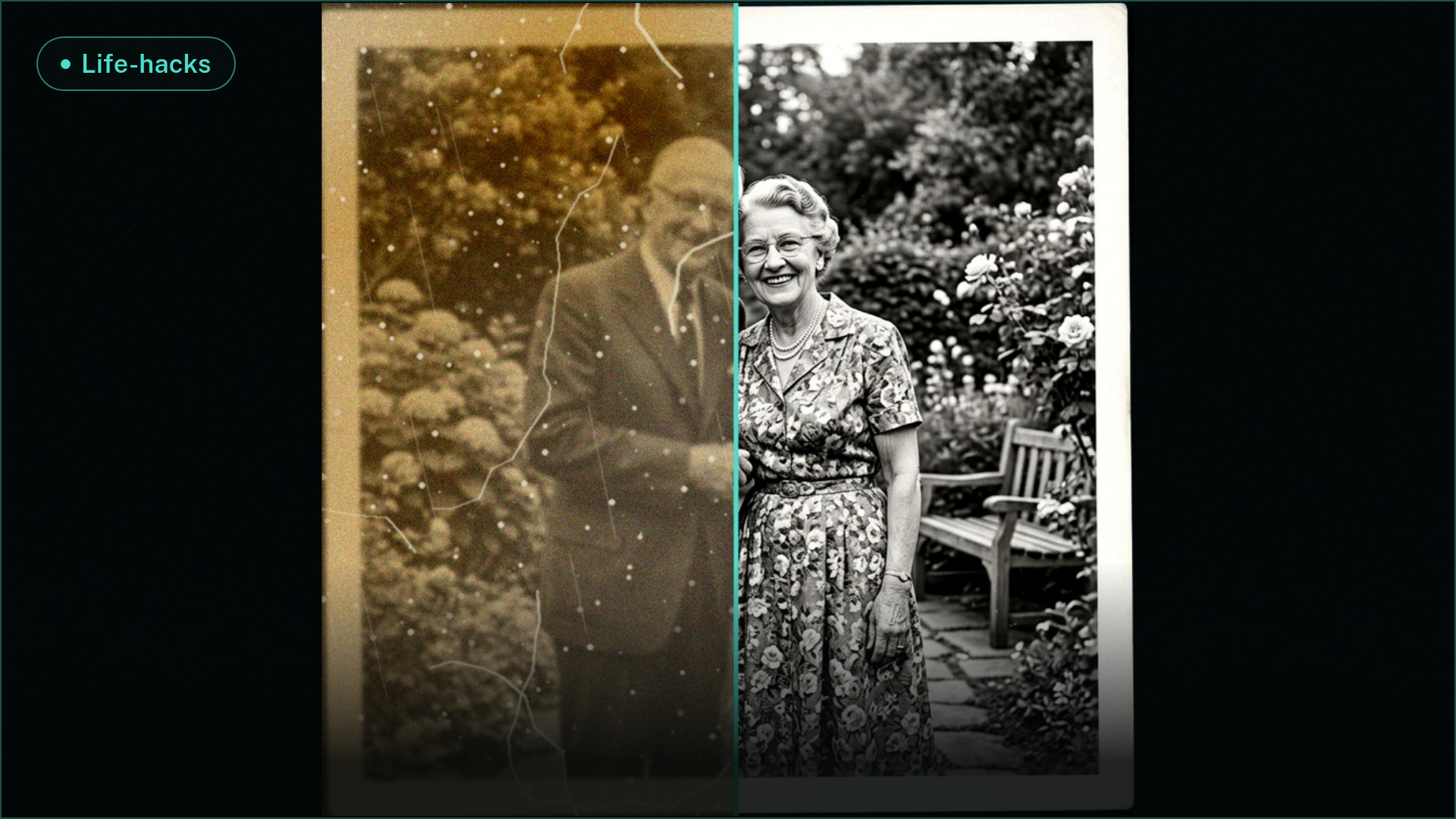
To see what damage looks like to a model, we generated a synthetic damaged print with Nano Banana 2 on 2026-10-12: dust, fine scratches and a vertical crease across one half, clean on the other. It is a texture reference, not a restoration result.
Try it on Ropewalk
Open Ropewalk, pick Nano Banana Pro, attach your scan and paste the prompt. Start with the photo that has the least damage, so you learn how the model behaves before you risk the one print nobody else has. Work on a copy of the scan, never the original file, and save every result under a new name so you can compare versions later. If you want a wider toolset for the rest of your workflow, the best AI photo editor guide lists alternatives for resizing, retouching and exporting.
FAQ
Can AI colorize an old family photo?
Yes, as a second step on an already restored image. Colors are estimated from context, not recovered, so treat them as a plausible guess rather than the true shades of the day.
What if the face is torn or missing?
Expect invention. A model has no data for a missing face, so it draws a generic one. Leave the tear visible, or restore only the readable parts and keep the original for the rest.
What resolution do I need for printing?
Scan small snapshots at 600 dpi and larger prints at 300 dpi. Restore first, then upscale the approved result to the print size, since upscaling a damaged scan enlarges the damage.
Comments
Comments feature coming soon! Stay tuned.