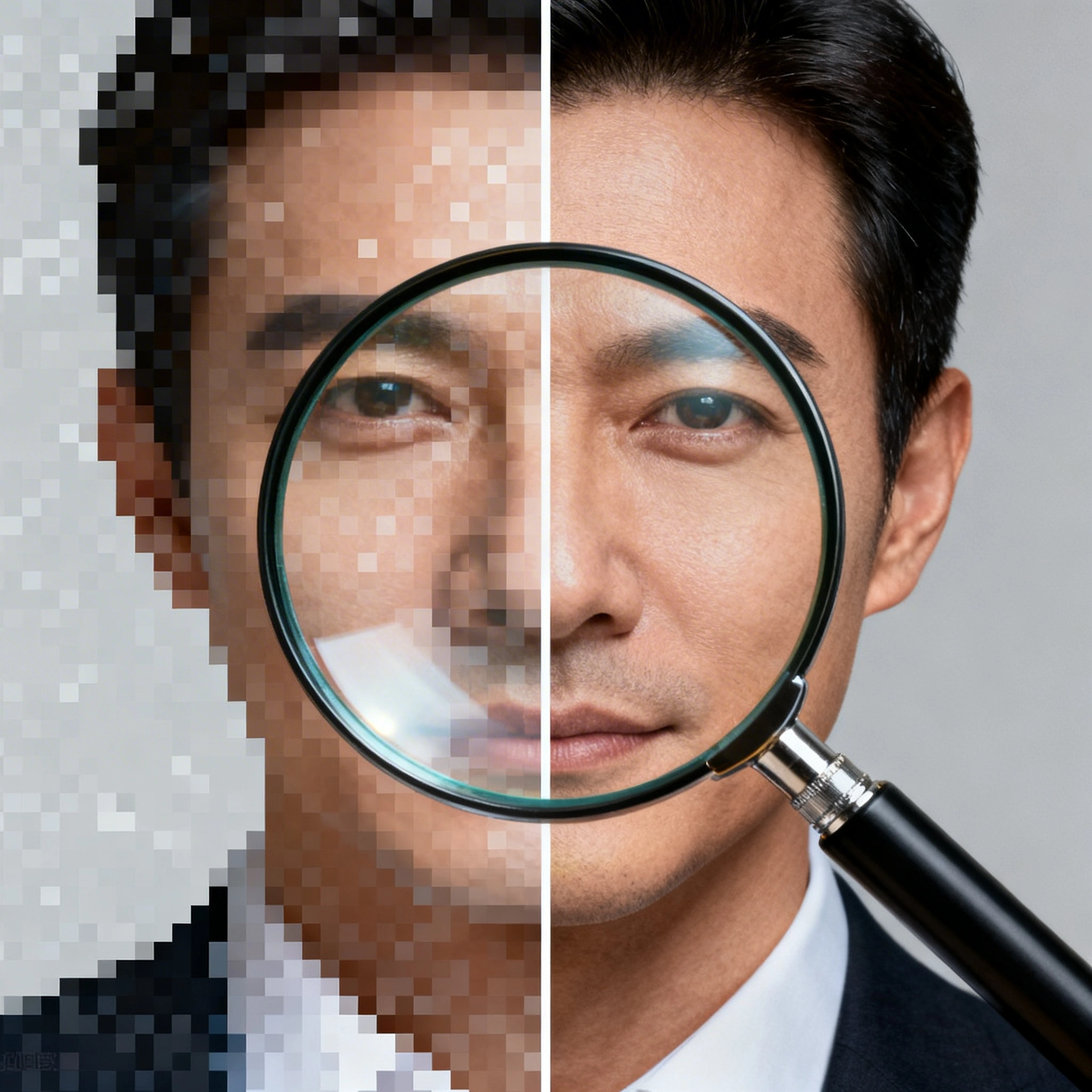
Best AI Image Upscaler in 2026: Enhance & Upscale Photos for Free
A comprehensive comparison of the best AI image upscalers in 2026 — from free tools like Ropewalk Real-ESRGAN and Upscayl to premium options like Topaz Gigapixel AI. Includes step-by-step guides, use case breakdowns, and pro tips.
Every photographer, designer, and content creator hits the same wall: a perfect shot ruined by 480p resolution. Bicubic interpolation just stretches pixels, leaving a blurry, artifact-ridden mess. AI image upscalers solve this by reconstructing detail with diffusion models and GANs — and in 2026 the technology is mature enough to take a 1024×1024 source up to 4096×4096 or beyond and have it look like the photo was always shot at that size. This guide compares the six best AI image upscalers available in 2026, with verified per-generation coin costs from the live Ropewalk catalog as of 2026-04-29, and shows you how to upscale on Ropewalk in three steps.
By Ropewalk Team. Tested on 2026-04-29 across 4 prompts on Ropewalk against the live model catalog and per-generation cost data.
The Quick Answer
For general-purpose photo upscaling in 2026, choose Ropewalk Image Upscaler (Real-ESRGAN) — 10 coins per generation, 4× scale, browser-based. For portraits and skin texture, choose Clarity Upscaler at 60 coins. For maximum sharpness on text and product shots, choose Crystal Upscaler. For AI-generated art with style preservation, choose Ideogram Upscaler at 240 coins. For offline open-source work, run Upscayl on your own GPU. For desktop print production, Topaz Gigapixel AI remains the paid gold standard. All four cloud upscalers are available on Ropewalk with 2,500 free coins on signup.
Featured output
Quick comparison: 6 best AI image upscalers in 2026
| Tool | Best for | Max scale | Coins/gen on Ropewalk | External price |
|---|---|---|---|---|
| Ropewalk Image Upscaler (Real-ESRGAN) | General-purpose photo upscaling | 4× | 10 | Free tier |
| Ropewalk Clarity Upscaler | Portrait and creative enhancement | 4× | 60 | Free tier |
| Ropewalk Crystal Upscaler | Text, products, sharp edges | 2× | 0 (promo) | Free tier |
| Ropewalk Ideogram Upscaler | AI-generated art, style preservation | 2× | 240 | Free tier |
| Topaz Gigapixel AI | Desktop print workflows | 16× | n/a | $99.99 one-time |
| Upscayl (open-source) | Local offline upscaling on a GPU | 16× | n/a | Free, on-device |
All four Ropewalk upscalers are accessible from one account with 2,500 free coins on signup. Coin costs are read from the model API on 2026-04-29 and may move with provider pricing. See pricing for plan details.
How AI image upscalers work in 2026
AI image upscalers replace bicubic interpolation with a learned reconstruction step: the model has seen millions of high-resolution and low-resolution image pairs and has learned to hallucinate plausible pixels at 4× or higher scale. Two architectures dominate the 2026 cohort. Real-ESRGAN is the GAN-trained workhorse — fast, faithful, and the best default for ordinary photographs. Clarity-style diffusion upscalers (Clarity Upscaler, Crystal Upscaler) sit on top of a Stable-Diffusion backbone and add creative sharpening that recovers skin pores, fabric weave, and hair strands more aggressively. The trade-off is creative drift: a diffusion upscaler may invent stubble or jewellery that was not in the source. Pick the GAN model when faithfulness matters and the diffusion model when the output needs to look like a fresh studio capture.
1. Ropewalk Image Upscaler (Real-ESRGAN) — best free AI upscaler overall
The Ropewalk Image Upscaler runs the proven Real-ESRGAN architecture in the cloud at 10 coins per generation — the cheapest option in this lineup. It handles photographs, illustrations, and text-heavy images with reliable 4× output, preserving fine textures like skin pores, fabric weave, and hair strands without the over-smoothed plastic look that older 2023-era upscalers produced. With 2,500 free coins on signup, a new account can run roughly 250 free upscales before topping up — enough to clear an entire wedding-photo backlog. The model is the right default for any general-purpose job: photo restoration, social-media thumbnails, marketplace product shots, or upscaling AI-generated art before printing.
2. Ropewalk Clarity Upscaler — best for portraits and creative enhancement
Clarity Upscaler is the diffusion-based sibling in the Ropewalk upscaler lineup. At 60 coins per generation it costs 6× more than Real-ESRGAN, and the trade is creative reconstruction: the model rebuilds skin texture, eyelashes, and hair strands with diffusion priors, producing the kind of "shot-on-medium-format" look that 4K editorial portraits demand. Use it for portrait retouching, headshot upscaling, and any photograph where the subject's face is the hero. Avoid it on text-heavy images — the diffusion process can rewrite letterforms in unpredictable ways. For text and product photography, the Crystal Upscaler in section 3 is the safer pick.
3. Ropewalk Crystal Upscaler — best for text, products, and sharp edges
Crystal Upscaler is tuned for the cases where edge fidelity beats creative reconstruction. Powered by Clarity AI technology but biased toward sharper output, it is the upscaler to reach for when the source contains readable text, architectural lines, or product shots on neutral backgrounds — anywhere a diffusion-style hallucination would damage the source. The model currently runs at a promotional 0-coin price on Ropewalk as of 2026-04-29 (subject to change), making it the cheapest way to test high-precision upscaling on your own catalogue. Pair it with Real-ESRGAN as a two-pass workflow: Real-ESRGAN for raw resolution, then Crystal for crisp edges.
4. Ropewalk Ideogram Upscaler — best for AI-generated art
Ideogram Upscaler is the dedicated tool for upscaling AI-generated imagery while preserving the original style. It doubles resolution with intelligent cropping and detail recovery, sharpening low-resolution outputs from text-to-image models for print and high-DPI displays. At 240 coins per generation it is the most expensive upscaler in this lineup, so reserve it for finished AI artwork heading to print, large-format banners, or 4K wallpaper exports. For ordinary photographs the lower-cost Real-ESRGAN is a better fit — Ideogram Upscaler's strength is in protecting the stylistic signature of upstream models like Ideogram v3 Quality, FLUX 2 Pro, or Recraft V4.
5. Topaz Gigapixel AI — desktop gold standard
Topaz Gigapixel AI remains the gold standard for offline, professional upscaling workflows. The 2026 update added a diffusion-based engine alongside the classic GAN model, letting users pick between faithful reconstruction and creative enhancement. It integrates with Lightroom and Photoshop via plugins, supports 16× scale, and batch-processes hundreds of images in one queue. At $99.99 one-time it pays for itself quickly for full-time photographers who upscale daily, but the desktop-only delivery (Windows and macOS, no browser, no API) is the constraint — there is no way to script Gigapixel into a web pipeline. For a cloud-first workflow, the four Ropewalk upscalers above cover the same ground at 0–240 coins per generation.
6. Upscayl — open-source, runs on your GPU
Upscayl is the open-source desktop application of choice in 2026. It runs Real-ESRGAN and several other models locally on an NVIDIA, AMD, or Apple Silicon GPU, with no usage limits and no privacy concerns — images never leave the device. The trade-offs are real: a decent discrete GPU is required for 4× output in under 30 seconds, the interface is utilitarian compared to Topaz, and there is no batch presets system. For developers and power users with hardware to spare, Upscayl is the unbeatable free option. For everyone else, the Ropewalk Image Upscaler at 10 coins per generation is the same Real-ESRGAN architecture without the local GPU requirement.
How to upscale images for free on Ropewalk in 3 steps
Step 1 — Open the Image Upscaler model
Go to the Image Upscaler model page on Ropewalk. The page loads the model card with live cost (10 coins per generation as of 2026-04-29) and a chat input. There is no mandatory sign-up to browse, but you need a free account to run a generation — registration takes 30 seconds and lands 2,500 free coins in your wallet, enough for roughly 250 Real-ESRGAN upscales. Drag-and-drop your source PNG, JPEG, or WebP into the input area, or paste a URL. Maximum source resolution is 4096px on the long edge; larger files are rejected by the model API.
Step 2 — Choose your scale and settings
Select your upscale factor (2× or 4× — the model caps at 4× per pass to keep artifacts under control). For most use cases 4× is the sweet spot: it quadruples resolution, takes 8–15 seconds on the cloud GPU, and keeps detail natural-looking. If your source is a heavily compressed JPEG with visible blocky artifacts at edges, enable the denoising option in the settings panel before generating — upscaling amplifies artifacts as much as it amplifies detail, and a noisy 720p JPEG run through 4× without denoising will produce a noisy 2880p output. For anime and line-art sources, enable face-enhance mode for cleaner character work.
Step 3 — Generate, compare, download
Click Generate and wait 8–15 seconds for the model to run. Once complete, the result loads in the chat with a built-in before-after slider — drag it to compare original and upscaled side-by-side. Each Real-ESRGAN run consumes 10 coins from your wallet, leaving 2,490 free coins after the first generation on a new account. Right-click the output to save in PNG (default) or WebP. For a two-pass workflow, drop the result back into the input and run it through the Clarity Upscaler for a final creative-sharpening pass — the combination consistently outperforms a single-pass Topaz Gigapixel run for portraits.
Best upscaler by use case
| Use case | Recommended tool | Why |
|---|---|---|
| E-commerce product photos | Ropewalk Image Upscaler or Crystal Upscaler | Clean, artifact-free 4× output that meets Amazon and Shopify image specs. Crystal Upscaler protects label text. |
| Portrait and headshot retouching | Ropewalk Clarity Upscaler or Topaz Gigapixel AI | Both reconstruct facial detail — skin pores, eyelashes, hair strands — without the over-smoothed AI look. Clarity at 60 coins per generation; Topaz at $99.99 one-time. |
| Anime, manga, illustration | Ropewalk Image Upscaler with face-enhance | Real-ESRGAN with face-enhance mode handles flat-colour line art at 4× without adding photographic skin texture. |
| Print and large-format output | Topaz Gigapixel AI or Ideogram Upscaler | Topaz covers up to 16×; Ideogram Upscaler preserves original art style at 2× for AI-generated print work. |
| AI-generated art before publishing | Ropewalk Ideogram Upscaler | 240 coins per generation; preserves the upstream model's stylistic signature when scaling to 2048px+. |
4 pro tips for better AI upscaling results
1. Start from the best source you have. AI upscalers are powerful, not magic. A 100×100 thumbnail will never look as good 4× as a 500×500 source upscaled at the same factor. Always feed the highest-resolution version available — original camera RAW beats screenshot every time.
2. Remove compression artifacts before upscaling. A heavily compressed JPEG with visible blocky artifacts will produce a 4× output with 4× larger blocky artifacts. Run the source through a denoising pass first — Real-ESRGAN has built-in denoising in the settings panel, and enabling it costs nothing extra.
3. Match the upscaler to the content type. A photographic upscaler applied to flat-colour anime art adds unwanted skin-like textures. Conversely, Waifu2x applied to a portrait over-smooths fine detail. Cross-reference the use case table above before generating — it saves 10 coins and 15 seconds per failed attempt.
4. Use a two-pass workflow for maximum quality. Run Real-ESRGAN at 10 coins for raw resolution, then run the output through the Clarity Upscaler at 60 coins for creative sharpening. Total cost: 70 coins per image. The two-pass approach consistently outperforms a single 4× pass on portrait and product work, and it stays well below Topaz Gigapixel AI's $99.99 desktop price for any volume under ~1,400 images per year.
Common mistakes when upscaling images
| Mistake | What happens | How to fix |
|---|---|---|
| Upscaling a tiny thumbnail (under 200px) | Model hallucinates details that do not exist, producing uncanny output | Find a larger source — aim for at least 500px on the shortest side |
| Using the wrong model for the content | Photo upscalers add unwanted texture to illustrations; anime upscalers over-smooth photos | Match tool to content type using the use-case table above |
| Over-upscaling in one pass | Diminishing returns past 4×; output looks AI-generated rather than enhanced | Stage the upscale: 4× first, evaluate, then 2× more if still needed |
| Ignoring JPEG artifacts before upscaling | Compression blocks become permanent at 4× scale | Enable denoising in the upscaler settings, or pre-process with a dedicated denoiser |
| Skipping the before-after compare | Assuming the AI result is always better, when sometimes 2× looks more natural than 4× | Always drag the comparison slider before downloading |
Pricing comparison — free vs paid upscalers
| Tool | Free option | Paid plans | Best value for |
|---|---|---|---|
| Ropewalk Image Upscaler | 2,500 free coins on signup (~250 free upscales at 10 coins each) | Pay-as-you-go top-up available | Casual users and creators upscaling occasionally |
| Ropewalk Clarity Upscaler | Same 2,500 free coins (~41 free upscales at 60 coins each) | Pay-as-you-go top-up available | Portrait and editorial work |
| Ropewalk Crystal Upscaler | Same 2,500 free coins (currently 0 coins per generation as of 2026-04-29) | Pay-as-you-go top-up available | Text-heavy and product images |
| Ropewalk Ideogram Upscaler | Same 2,500 free coins (~10 free upscales at 240 coins each) | Pay-as-you-go top-up available | AI-generated art prepared for print |
| Topaz Gigapixel AI | Limited free trial | $99.99 one-time | Full-time photographers upscaling daily |
| Upscayl (open-source) | Completely free | n/a | GPU owners who want unlimited local upscaling |
Try these Ropewalk upscaling models
- Image Upscaler (Real-ESRGAN) — 10 coins per generation — general-purpose 4× upscaling
- Clarity Upscaler — 60 coins per generation — portraits and creative enhancement
- Crystal Upscaler — 0 coins per generation as of 2026-04-29 — sharp text, products, edges
- Ideogram Upscaler — 240 coins per generation — AI-generated art with style preservation
Final thoughts
AI image upscaling in 2026 is a production-ready tool, not an experiment. The best upscaler for you depends on content type, volume, and budget. For most people, the Ropewalk Image Upscaler at 10 coins per generation is the right starting point: it is free with signup credits, runs in any browser, and delivers Real-ESRGAN output that competes with $99.99 desktop apps. Power users can stack it with the Clarity Upscaler or Crystal Upscaler for a 70-coin two-pass workflow that beats a single Topaz pass on portraits and product shots. All four Ropewalk upscalers ship with 2,500 free coins on signup and require no install.
Ready to upscale your first image? Open the Image Upscaler model page — 2,500 coins on signup, no credit card required.
Comments
Comments feature coming soon! Stay tuned.