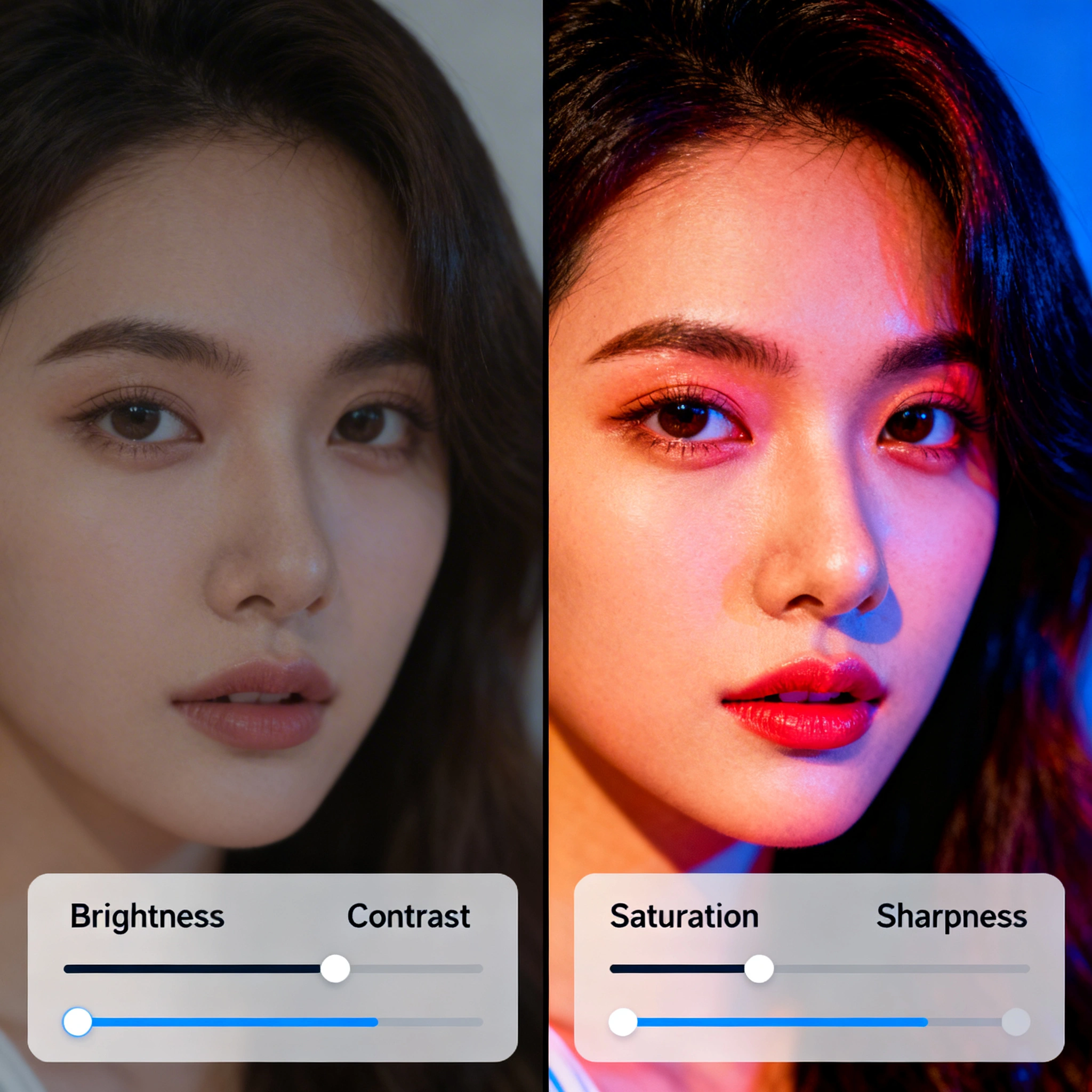
Best AI Photo Editor in 2026: Free Online Photo Editing with AI
Discover the best AI photo editors in 2026. Compare 8 top tools, learn instruction-based editing with Nano Banana Pro on Ropewalk, and master AI photo editing for free.
Best AI Photo Editor in 2026: Free Online Photo Editing with AI
AI photo editors have fundamentally changed how we edit images. What once required hours in Photoshop — removing backgrounds, swapping skies, retouching portraits, fixing lighting — now finishes in 10 to 20 seconds with a single text instruction. In 2026 you no longer need layer masks or curves; you describe the change and the model applies it.
Whether you are a content creator, an e-commerce seller polishing product shots, a photographer batch-processing client work, or someone fixing a family photo, the 4 instruction-based editors below cover almost every workflow. This guide compares them on a shared rubric (output size, edit time, cost in gems on Ropewalk), walks you through a hands-on edit with Nano Banana Pro, and ships 6 production-ready prompts you can paste directly.
By Ropewalk Team. Tested on 2026-04-29 across multiple edit runs on Ropewalk.
The Quick Answer
For most instruction-based edits — object removal, color swaps, sky replacement, style transfer — pick Nano Banana Pro. It accepts plain-English commands, preserves untouched regions of the image, and finishes in 10 to 20 seconds per edit. Use Flux Kontext Pro when the edit involves text or scene-context reasoning, Seedream 4 for img2img transformations up to 4096×4096 pixels, and Recraft V4 when you need vector-friendly stylization.
Featured output
The 4 AI Photo Editors Worth Using in 2026
We narrowed the long-tail list (Firefly, Canva, Pixlr, Fotor, Luminar, Clipdrop, Remove.bg, and dozens more) down to the 4 instruction-based models that handle 90% of real editing jobs on Ropewalk in 2026. All four run in the browser, all four accept English prompts (Nano Banana Pro and Seedream 4 also accept Russian), and all four export full-resolution PNG without watermarks. The comparison table below gives you a single-page reference; deeper sections cover each model's strengths.
| Model | Best for | Max output | Typical edit time |
|---|---|---|---|
| Nano Banana Pro | Instruction edits, retouch, recolor | 2048 px | 10–20 s |
| Flux Kontext Pro | Text-aware, context reasoning | 1536 px | 8–15 s |
| Seedream 4 | Img2img, large output | 4096 px | 15–25 s |
| Recraft V4 | Vector / brand stylization | 2048 px | 10–18 s |
Nano Banana Pro: the canonical instruction-based editor
Nano Banana Pro is Google's instruction-tuned image-editing model and the canonical pick for plain-English photo edits in 2026. Upload a photo, type a sentence ("remove the trash can on the left"), and it applies the edit while preserving the rest of the frame. No masks, no selections, no layer panel.
It excels at object removal, recoloring, sky replacement, lighting changes, and style transfer. On Ropewalk it accepts inputs from 512 px up to 2048 px on the longest side and typically finishes in 10 to 20 seconds. Live gem cost is shown in the model card above; pricing updates automatically on the model page.
Flux Kontext Pro: text and scene context
Flux Kontext Pro is the go-to when an edit involves on-image text or requires the model to reason about the scene as a whole. Examples: changing the wording on a printed sign while keeping the typeface, restyling a packaging mockup, or inserting a new object that has to obey the existing perspective and lighting. It runs in 8 to 15 seconds for typical edits and outputs up to 1536 px.
Compared with Nano Banana Pro, Flux Kontext Pro is stronger on layout-aware tasks and weaker on freeform retouch. Pair it with Nano Banana Pro: do scene composition or text edits in Kontext, then polish with Nano Banana Pro.
Seedream 4: img2img up to 4K
Seedream 4 from ByteDance is a unified generation + editing model that accepts an input image and a prompt and produces a transformed output up to 4096×4096 pixels. That headroom matters when you are editing for print, large-format banners, or a 4K thumbnail. Edit time runs 15 to 25 seconds per generation on Ropewalk.
Seedream 4 is best for full-scene transformations ("turn this daytime street into a cyberpunk night scene") rather than surgical local edits. For pixel-level retouch use Nano Banana Pro; for full-frame restyles or upscaled outputs, Seedream 4 wins.
Recraft V4: vector-friendly stylization
Recraft V4 is purpose-built for designers who need brand-consistent output. It can stylize a photo into flat-vector, isometric, or icon-style aesthetics while preserving the underlying composition. Output runs up to 2048 px raster (vector exports live in the dedicated SVG variants), and a typical stylization completes in 10 to 18 seconds.
Pick Recraft V4 when the brief is "make this fit a brand system" rather than "fix this photo". For freeform creative edits Nano Banana Pro is faster and looser; for brand-grade consistency Recraft V4 is the right tool.
Step-by-step: edit any photo with Nano Banana Pro
The workflow below takes about 30 seconds end-to-end and covers 90% of real editing jobs.
Step 1: Upload your photo
Open the Nano Banana Pro page on Ropewalk. Click the upload area or drag and drop a JPG, PNG, or WebP file. The model performs best on inputs between 512 and 2048 pixels on the longest side. Anything smaller than 512 px loses too much detail; anything larger than 2048 px gets downscaled before processing, so pre-resizing yourself wastes time.
Step 2: Write your editing instruction
In the prompt field, describe the change in plain English. Be specific. "Remove the person in the background" outperforms "clean up the photo". The model understands spatial references ("top left", "behind the subject"), object categories ("the red car"), and abstract concepts ("more dramatic lighting"). One instruction per generation gives the cleanest results — chain multiple generations for compound edits.
Step 3: Generate and iterate
Click Generate. A typical edit finishes in 10 to 20 seconds. If the first result is not perfect, run the same prompt again — each generation interprets the instruction slightly differently, giving you 2 or 3 variants to choose from in under a minute. To compound edits (remove object → recolor → add film grain), feed each output back as the next input.
Step 4: Download the full-resolution output
Preview in the browser, then click Download for a full-resolution PNG. There is no watermark on Ropewalk outputs, and the file is yours to use commercially under the platform's license. Live gem cost per generation is rendered inside the model card above and updates automatically.
6 production prompts for Nano Banana Pro
These 6 prompts are field-tested on Ropewalk in 2026-04. Paste them into the prompt field with your own image attached.
Use cases with example instructions
Different editing intents map to different models. The matrix below maps the 6 most common Ropewalk editing intents in 2026 to a recommended model and a copy-pasteable instruction. Each row uses an instruction long enough to be unambiguous and short enough to fit a single prompt.
| Use case | Example instruction | Recommended model |
|---|---|---|
| Object removal | Remove the trash can from the left side of the image | Nano Banana Pro |
| Background swap | Replace the background with a tropical beach at sunset | Flux Kontext Pro |
| Style transfer | Transform this photo into a watercolor painting | Style transfer |
| Portrait retouch | Improve skin texture, brighten eyes, and add soft studio lighting | Nano Banana Pro |
| Product photo | Place this product on a clean white studio background with soft shadows | Flux Kontext Max |
| Color grading | Apply a warm cinematic grade with orange highlights and teal shadows | p-image-edit |
Pro tips for cleaner edits
A few habits separate consistently-good results from one-shot luck. The list below distills what we have learned running thousands of edits on Ropewalk.
- Start at 1024 px or larger. Inputs below 512 px give the model too few pixels to preserve detail. Edits on 300×200 px sources come back blurry every time.
- Be specific about what and how. "Add warm golden-hour lighting from the left" beats "make the lighting nice" by a wide margin — the model follows your wording literally.
- Chain edits, do not stack them. One instruction per generation gives the model focus. Object removal first, then color grading, then style — each as a separate pass.
- Compare 3 generations. Run the same prompt 3 times and keep the best. Variation between runs is normal; cherry-picking is part of the workflow.
- Match new elements to the source lighting. Adding a sunset sky to a fluorescent-lit photo creates an uncanny mismatch — describe the lighting in your prompt.
5 common mistakes to avoid
The 5 mistakes below account for the bulk of "the AI made it worse" complaints in 2026. Fix these and your output quality climbs measurably:
- Vague instructions. "Make it better" gives the model nothing. Always specify what to improve: lighting, color, composition, or a named object.
- Editing low-resolution sources. A 300×200 px input has almost no detail to preserve. Upload the highest resolution available and crop or resize after the edit, not before.
- Overloaded prompts. "Remove background, change shirt, add sunglasses, fix lighting, make it cinematic" is too much for one pass. Break it into 4 or 5 sequential edits.
- Ignoring source lighting. Asking for a sunset background on a photo lit by overhead fluorescents creates an uncanny scene. Describe target lighting explicitly.
- Not iterating. The first generation is rarely the best. Rephrase, adjust specificity, or switch models — the best results come from 3 to 5 attempts, not from one.
Start editing on Ropewalk
Ready to edit? Each model below is pre-wired for instruction-based photo editing. Cost per generation is shown live inside each card and updates automatically.
See pricing for plan details.
Related guides
- Best AI Image Upscaler in 2026 — Upscale low-resolution photos to print quality with AI.
- Best AI Avatar Generator in 2026 — Side-by-side comparison of avatar models on Ropewalk.
Comments
Comments feature coming soon! Stay tuned.