Ropewalk Canvas in 5 Minutes: Your First Workflow (2026)
Build your first node-based workflow in Ropewalk Canvas: connect a prompt to a Generator, pick FLUX 2 Klein 4B, press Run and find the result in the Gallery.
Ropewalk Canvas in 5 Minutes: Your First Workflow (2026)
Ropewalk Canvas turns one prompt into a repeatable, visual workflow: in about 5 minutes and 5 coins you can wire a text prompt to an image generator, run it, and find the result in the canvas Gallery. This guide walks the exact flow we clicked through on 2026-10-30, with the FLUX 2 Klein 4B starter model. It is 7 steps long, and 5 of them need a screenshot because the interface hides the key control behind a click. By the end you will know what the Cost line, the Empty and Connect warnings and the Gallery are for, so the second canvas takes under 2 minutes.
By Ropewalk Team. Tested on 2026-10-30 in a live account, across several test canvases, in both the English and the Russian interface.
The Quick Answer
- Open the Canvas tab in the sidebar and press New Canvas.
- Choose Start with a blank canvas and drag a Generator node onto the board.
- Type your prompt in the text node that arrives wired to the Generator's Prompt port.
- Filter the Generator by Image, pick FLUX 2 Klein 4B, and check the Cost line.
- Press Run, then open Gallery in the top bar to see everything the canvas produced.
What Canvas is, and when to use it instead of chat
Ropewalk Canvas is a node editor: instead of typing one message at a time, you place blocks on a board and connect them with edges, so a prompt flows into a model and the model's output flows onward. Chat is the faster path for a one-off picture. Canvas pays off when you want to re-run the same pipeline, swap the model without retyping the prompt, or chain steps such as image, then video, then audio. The palette on the left holds five node types in three groups: Text Input and File Input (Input), Generator (Processing), and Note and Group (Utility). A Generator covers five output kinds, filtered by the All, Image, Video, Audio, Text and 3D chips, so one node type serves every model on the platform. We counted 5 palette nodes on the board built on 2026-10-30.
Step 1: Open Canvas and start a new board
The sidebar has two tabs at the top, Chats and Canvas. Switch to Canvas and the page lists every board you have made, each card showing its node count and last-edited time, for example "3 nodes" with a date. Press the teal New Canvas button and the editor opens at its own address under /canvas. The first thing you see is a welcome panel with two ready-made workflows, "Product ad image" and "Animate an image", plus a Start with a blank canvas option. The ready-made ones are worth opening later; for this first run, choose the blank board so you see every piece being placed. Starting a canvas costs 0 coins: coins are only used when a generation runs.
Step 2: Add a Generator and write the prompt
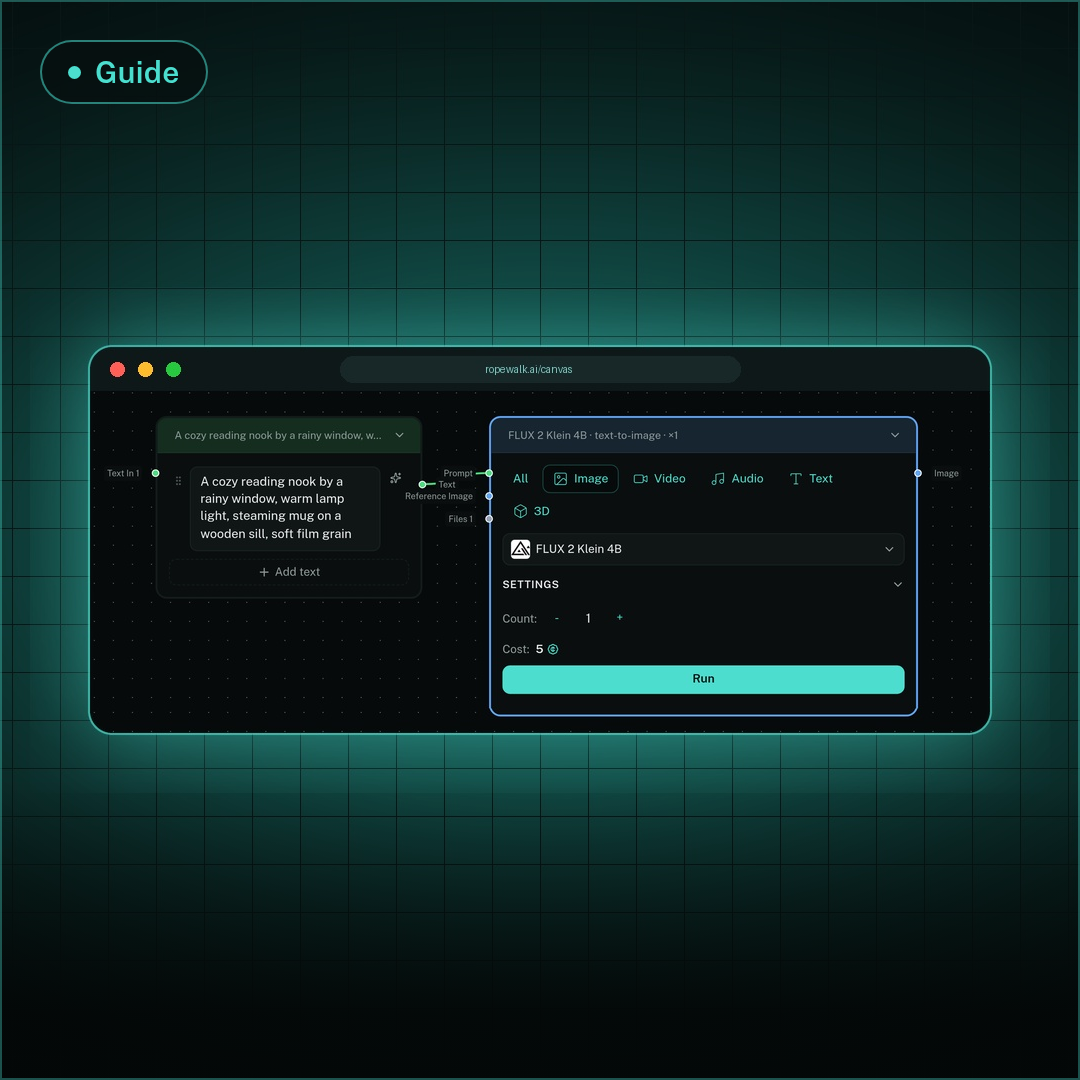
Drag Generator from the palette onto the board. In our test the drop produced two nodes at once: the Generator and a green text node already wired into its Prompt port, so there was nothing to connect by hand. The Generator shows a red Empty: Prompt warning and a disabled Run button until that text node has content. Click the text field and type your prompt; the node header then shows the first words of it. We used "A cozy reading nook by a rainy window, warm lamp light, steaming mug on a wooden sill, soft film grain", 17 words, which gives the model a subject, a light source and a texture. If you ever need a second prompt, drag a Text Input from the palette and connect its Text port to a Generator's Prompt port.
Step 3: Pick FLUX 2 Klein 4B in the Generator
The Generator opens with a model list and a row of type chips. Press Image to keep only image models, then type "FLUX 2 Klein" into Search models... and select FLUX 2 Klein 4B. Every row in the list shows its coin price with a "+" when the price depends on settings; FLUX 2 Klein 4B reads "5 +", the cheapest way to test a workflow. Once chosen, the node header changes to the model name with its mode, for example "FLUX 2 Klein 4B · text-to-image · ×1", and a collapsible Settings section appears with a Count field set to 1. Count is the number of images per run, so raise it only when you want variations; at Count 1 the starter model costs , and at Count 4 you should expect roughly 4 times that.
Step 4: Read the connection warnings
A Generator tells you what it is missing before you spend anything. The status line under Run names the problem: Empty: Prompt means a connected input has no content yet, and a port with no edge at all is reported as a Connect warning with the port name. The ports are typed and colored: green for text, blue for images, and the Generator also exposes Reference Image and Files inputs for image-to-image work. To connect two nodes yourself, drag from a round port on one node to a compatible port on the other; a mint line appears and snaps into place. Dragging an edge into empty space opens a search menu of node types and models, so you can create and connect the next step in one move. On the 2026-10-30 build we saw exactly 2 warning types, Empty and Connect, and 3 input ports on the Generator.
Step 5: Check the cost and press Run
With the prompt filled and the model chosen, the warning disappears and the Run button turns solid teal. Directly above it sits the Cost line, which for FLUX 2 Klein 4B at Count 1 read 5 coins, live from the node rather than from a price table. Our test account balance dropped from 1,015 to 1,010 coins after pressing Run, matching that line. When you press Run the node switches to a progress card with a status message and a live elapsed timer, and it shows the typical duration for the model (about 11 seconds for this one). Coins are used when a run starts, so confirm the Cost line first, especially if you raise Count above 1.
Step 6: Open the Gallery
The Gallery button in the top bar collects everything the canvas has generated, so you never hunt through nodes for an old result, even on a board with 5 or 10 nodes. The Gallery sits next to Save at the right end of the top bar, one click from any node, and it opens as a dialog over the board instead of a new page, so your layout and zoom level stay exactly as you left them. In the 2026-10-30 test the empty-state message was the only content, 1 line long. An empty board shows "No generated content yet. Run a generator to see results here." Once a generator finishes, its output appears in the same grid, and each node also keeps its own output on the board.
Step 7 (optional): Ask the Canvas Assistant to extend the graph
The robot icon in the top bar opens the Canvas Assistant, a side panel with the prompt "Ask me to build or modify your canvas workflow" and an input labelled "Ask about your canvas...". Describe what you want in plain language, for example adding a video step after your image, and the assistant edits the graph for you while you watch nodes appear. It is the quickest route from a 2-node starter to a 5-node pipeline, and it was 1 click away in the 2026 interface. Treat its result as a draft: check each Generator's model and Cost line before pressing Run, because added steps add coins.
FAQ
Why is Run disabled?
Run stays disabled while the Generator has a problem listed under it: a prompt that is still empty (Empty: Prompt) or a required port with no edge (Connect). Fill the text node or connect the missing port and the button turns solid teal. Pick a model first, since a Generator with "select a model" in its header has nothing to run. Balance also matters (on 2026-10-30 the Cost line replaced the warning as soon as both fields were filled): a run needs at least the amount shown on the Cost line.
Does Canvas save automatically, and where are my old canvases?
The status next to the canvas title shows Unsaved after you edit and clears when the board is saved; the Save button in the top bar forces it. Every board lives on the Canvas tab of the sidebar as a card with its node count and last-edited date, so reopening yesterday's workflow is one click. Rename a board by clicking its title, and use the three-dot menu on a card for options.
Can I use a different model than FLUX 2 Klein 4B?
Yes. Switch the Generator's type chip to Video, Audio, Text or 3D, or stay on Image and search another model; the Cost line recalculates at once. Start with a cheap model such as FLUX 2 Klein 4B to prove the wiring, then swap in a premium model. For prompt-writing habits that carry over, see the Generation Settings guide and the beginner's guide to AI images.
Comments